|
The following steps are the simple way to set up the Audio Conference
Service:
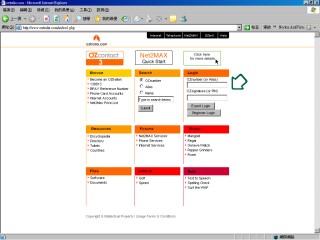
Step 1: Login to http://www.oztralia.com/index1.php
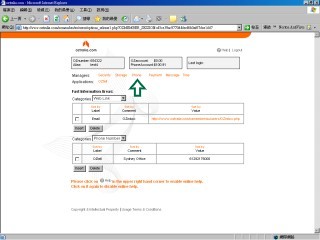
Step 2: Click on Managers -> Phone
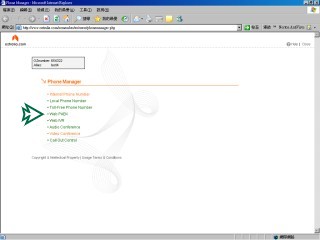
Step 3: Click on Web Pabx
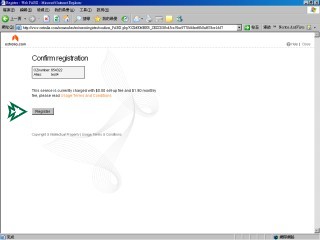
Step 4: Register Web Pabx
Step 5: Finished register then close the page and click on Web
Pabx again under Phone Managers to enter into Web Pabx main menu
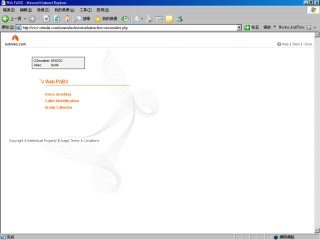
Step 6: Click on Voice Greeting
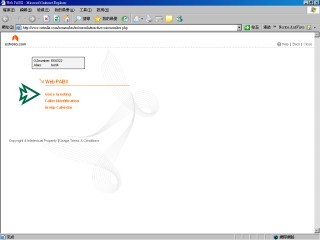
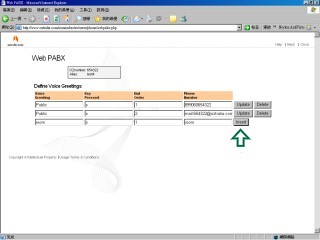
Step 7: Setup Voice Greeting (Sample: Voice Greeting = room, Key
Pressed = s, Dial Order = 1, Phone Number = room) and click on insert
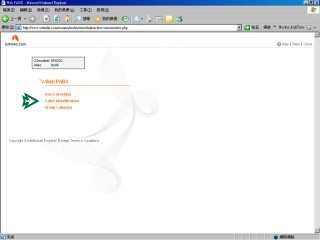
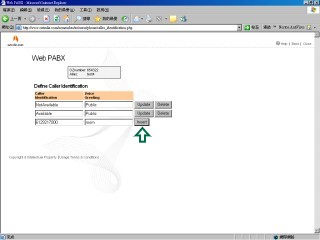
Step 8: Go back to Web Pabx main menu then click on Caller Identification
Step 9: Enter the Caller ID Number that allow to join the audio
conference (Sample: Caller Identification = 61292176000, Voice Greeting
= room) and click on insert
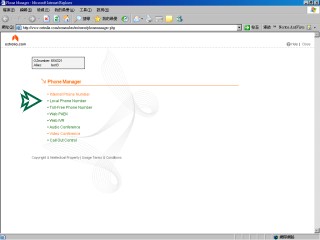
Step 10: Go back to Phone Managers and click on Local Phone Number
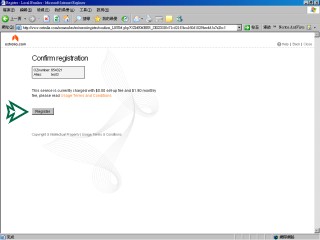
Step 11: Register Local Phone Number service
Step 12: Finished register then close the page and click on Local
Phone Number again under Phone Manager to enter into Local Phone
Number main menu
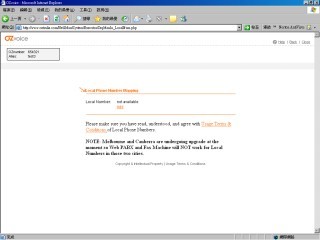
Step 13: Click on Add to register a local phone number
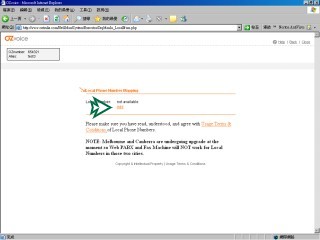
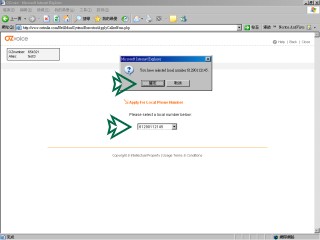
Step 14: Select a local phone number from the list and click on
OK
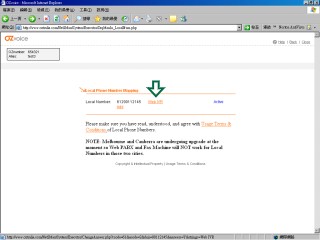
Step 15: Click on Web IVR to change the service for the local phone
number
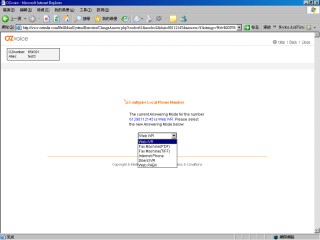
Step 16: Select the new service that you want to apply for the
local phone number (Web PABX, Fax Machine (PDF), Fax Machine (TIFF),
Internet Phone, Silent IVR, Web IVR), we will select Web PABX for
Audio Conference and click on OK
Step 17: Finished setting then close the page and click on Audio
Conference under Phone Manager to enter into Audio Conference main
menu
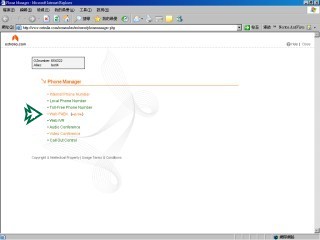
Step 18: Register Audio Conference
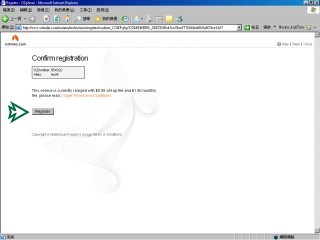
Step 19: Finished register then close the page and click on Audio
Conference again under Phone Managers to create a audio conference
room
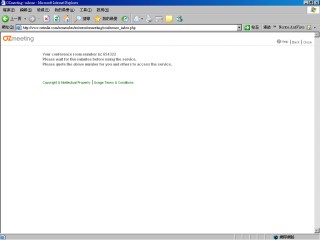
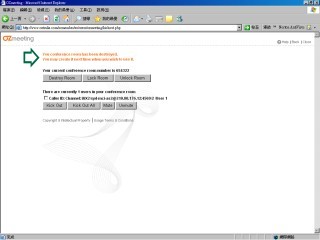
Step 20: Finished room create, click on close and click on Audio
Conference again to enter into Audio Conference control menu
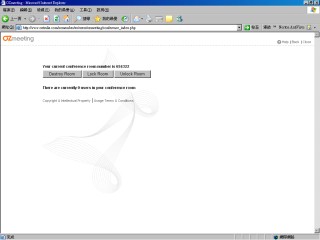
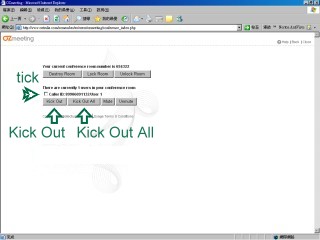
Step 21: Tick the selected user and click on "Kick Out"
to kick out the user or click on "Kick Out All" to kick
out all users
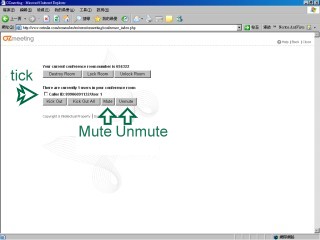
Step 22: Tick the selected user and click on "Mute" to
mute the user or click on "Unmute" to unmute the user
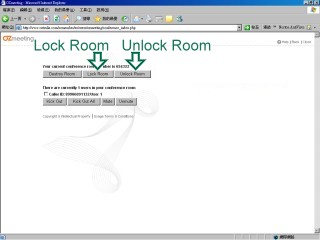
Step 23: Click the "Lock Room" to prevent people enter
into the room or "Unlock Room" to allow people enter into
the room
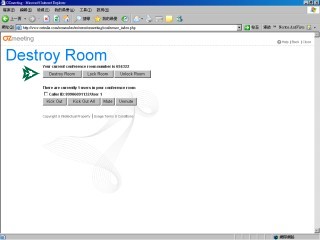
Step 24: Click the "Destroy Room" to destroy room
Step 25: Finish Audio Conference
|